How projectMM works
You have lights running. This page explains what you were actually looking at.
There is really only one idea in projectMM, and everything else follows from it. Ten minutes here and the rest of the interface stops being a wall of settings and becomes a place you know your way around.
New here? Start with Install & first light and come back once something is lit.
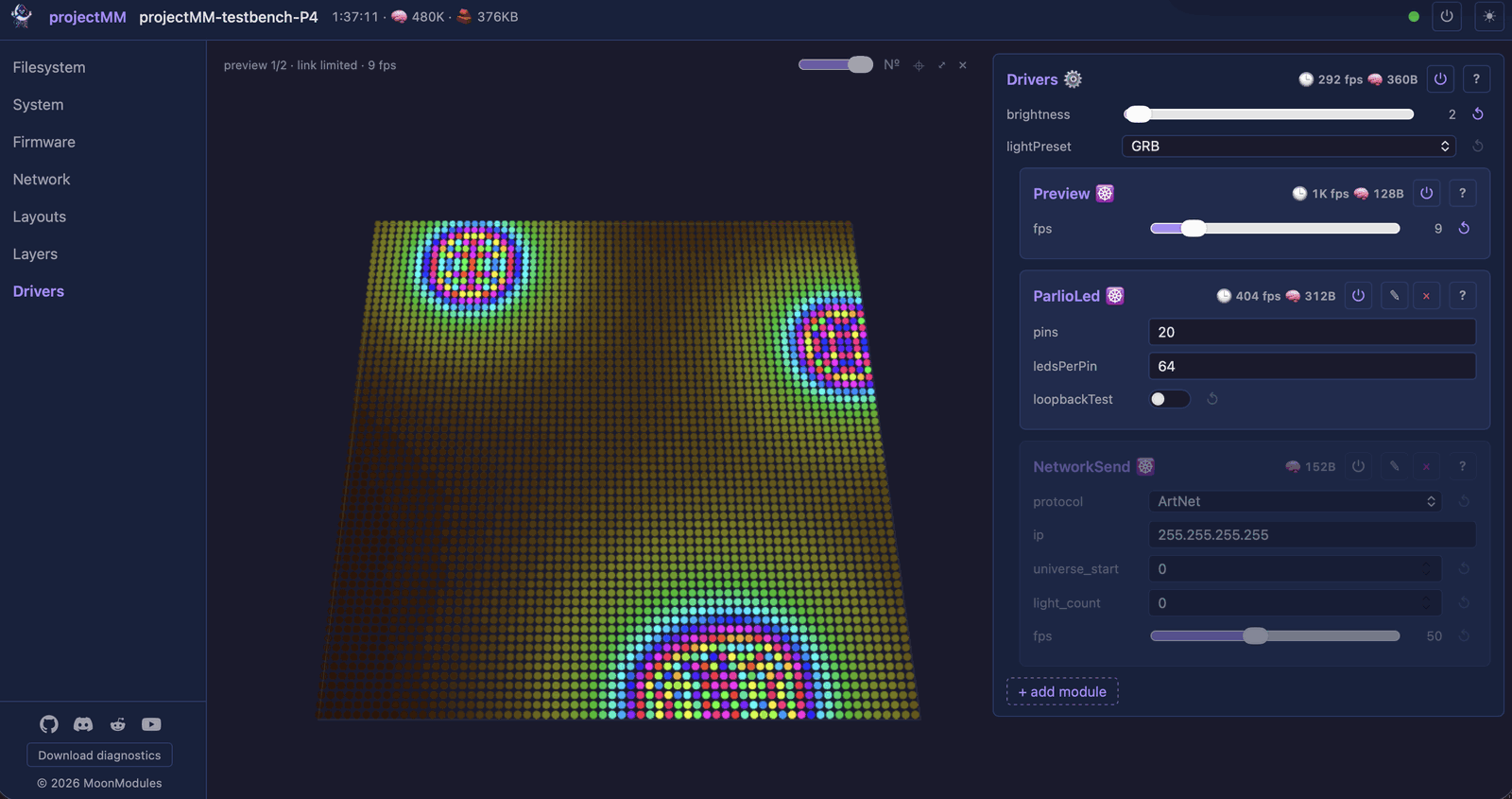
1. Everything is a card
Every single thing in projectMM — the WiFi settings, an effect, an LED driver, the file manager — is a MoonModule. And every MoonModule is a card.
There is no second kind of thing. Learn to read one card and you can read them all.
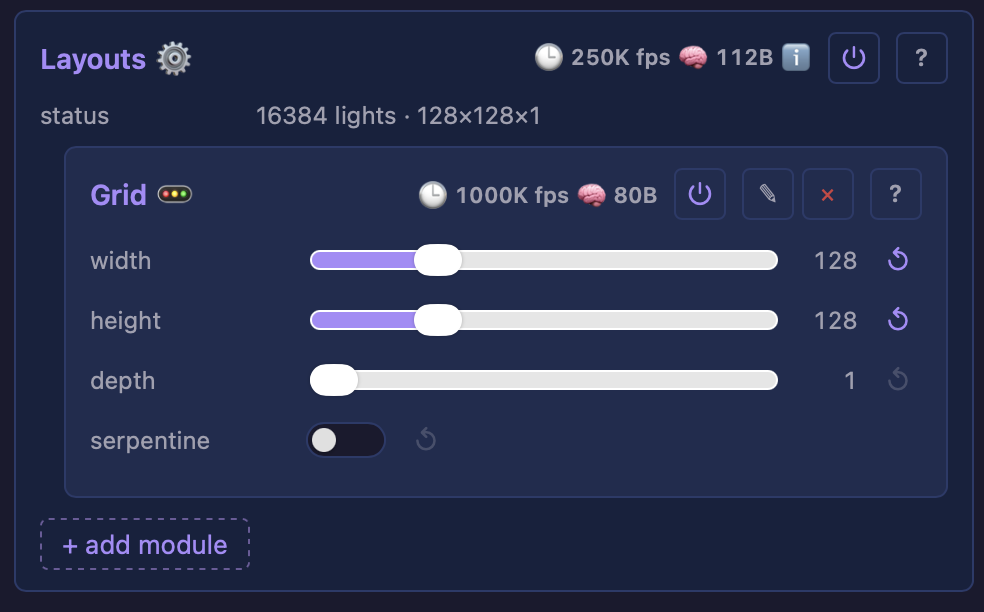
Look at that picture again, because every card has the same parts:
| What you see | What it means |
|---|---|
| Layouts ⚙️ | The name, and an emoji hinting at what it does |
| 🕐 250K fps | How fast this module runs, live |
| 🧠 112B | How much memory it uses, live |
| ⏻ | Turn it off without deleting it |
| ? | Open this module's documentation |
{ } |
Open its live state, for issue reports |
status, width, height … |
The settings, one per row |
| The Grid box inside | A child card — cards nest |
| + add module | Add a child here |
Two of those are unusual and worth pausing on.
The timing and memory are per module, and they are live. Most software hides this. projectMM shows you exactly what each part costs, so when something feels slow you can see which card is responsible instead of guessing.
The nesting is the structure. A child card is drawn inside its parent's
border. When you see Grid inside Layouts, that is not decoration — the Grid
really does belong to Layouts. The box is the truth.
2. Two families of card
Cards come in two kinds, and knowing which is which tells you where to look for anything.
Core — the device itself
Identity, network, files, firmware. This half knows nothing about lights: it would be identical on a machine driving motors or synthesising audio. These cards are fixed — you configure them, you don't add or remove them.
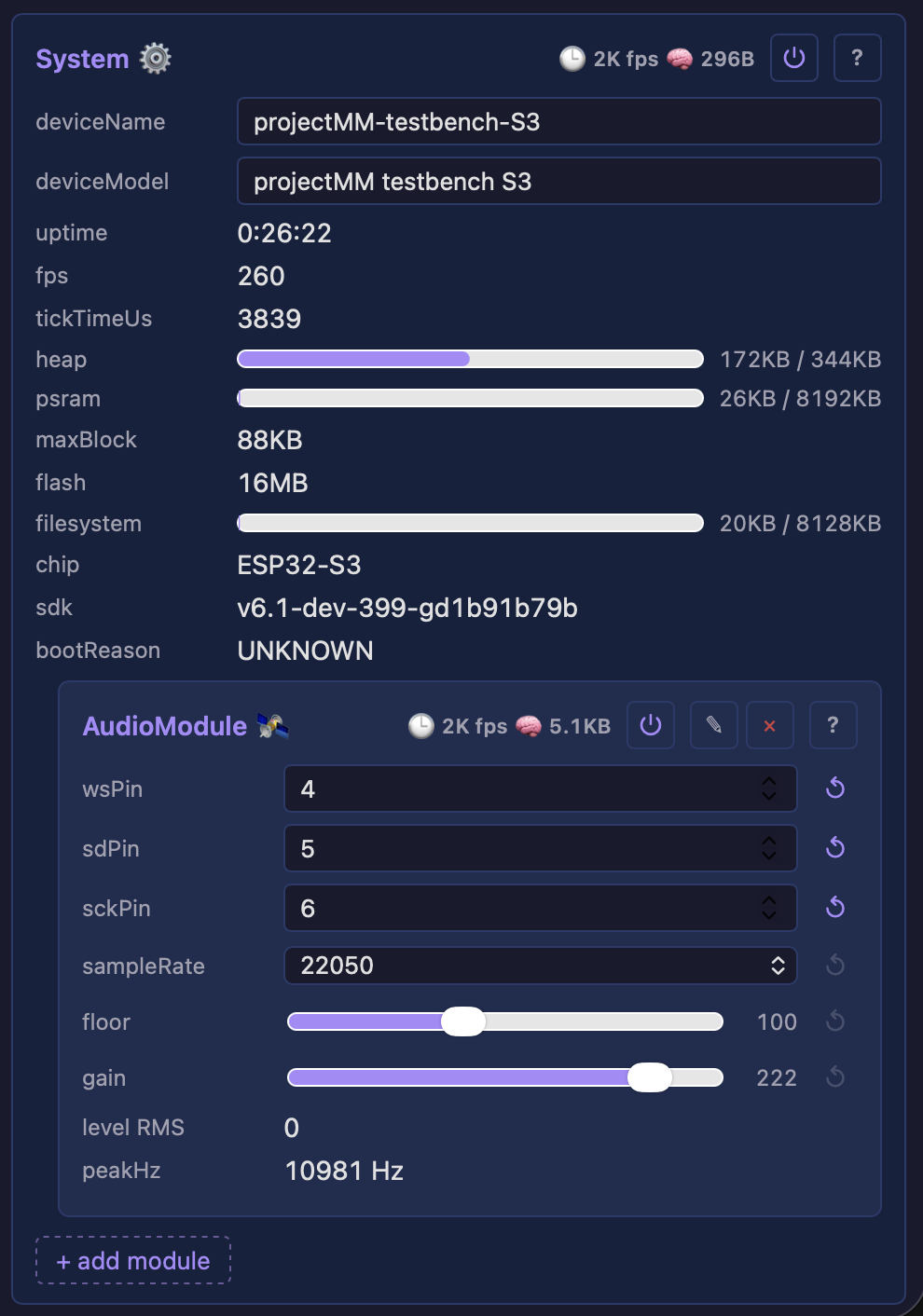
| Card | What it's for |
|---|---|
| System | Device name, chip, memory, uptime, why it last rebooted |
| Network | WiFi and Ethernet, plus MQTT and finding other devices |
| File Manager | Browse, edit and upload files on the device |
| Firmware | Your version, and updates over the air |
| Services | Hardware that isn't lighting — a microphone, a sensor |
| Control | Drive controls from MIDI, a remote, or another device |
Light — what you build with
Lights, colours, and getting the bytes out. These cards are yours: add them, remove them, rearrange them freely.
| Card | What it's for |
|---|---|
| Layouts | Where the lights physically ARE |
| Effects | What colour they are, over time |
| Drivers | How the colours actually reach the lights |
That split is why the menu is ordered the way it is: the device first, then the three light cards.
3. The light pipeline
Those three light cards are not a random list. They are a pipeline, and they run in order, every frame:
1. A Layout decides where the lights are. A 16×16 grid, a ring of 60, two rows of 24, a shape you draw yourself. It answers one question: how many lights, and where is each one?
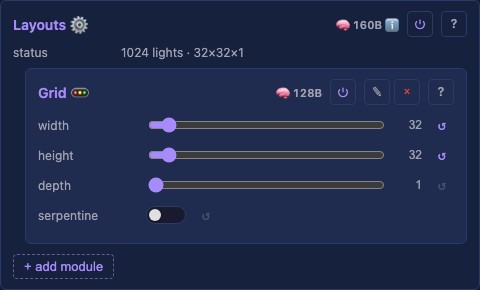
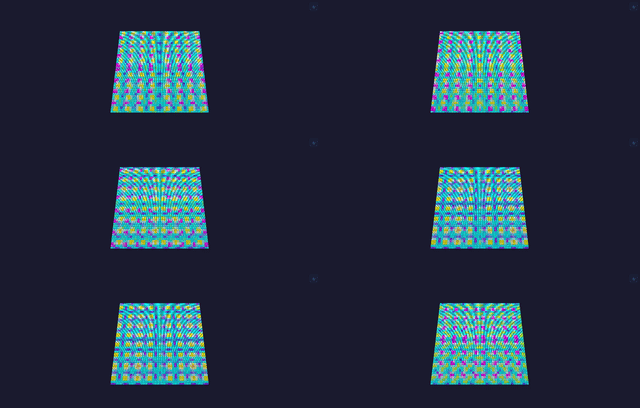
2. An Effect paints them. It asks the layout for the coordinates and writes colours — every frame, forever. Effects live inside a Layer, and a Layer can hold several, stacked and blended like layers in an image editor.
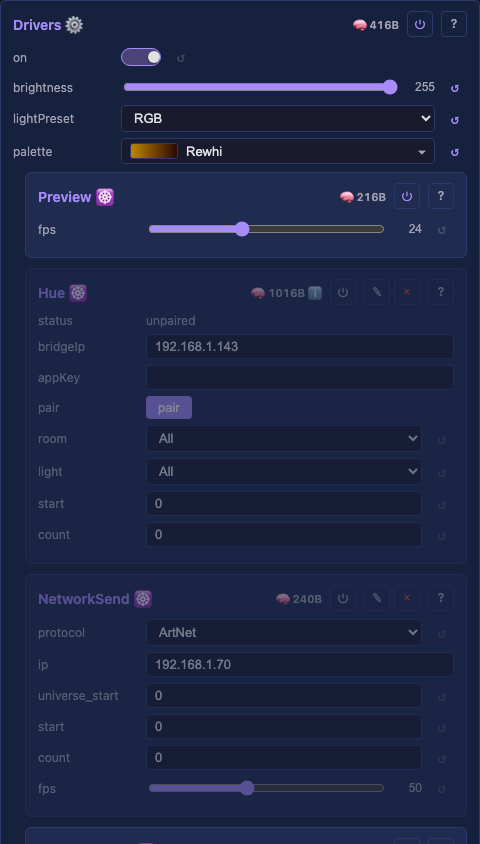
3. A Driver sends the result somewhere. Out a GPIO pin to a strip, across the network as ArtNet or DDP, or to the preview in your browser.
Why this order matters
Because the stages are separate, changing one doesn't break the others.
Resize your panel from 16×16 to 32×32 and every effect keeps running — it simply asks the layout a new question and gets new coordinates back. That is why the same effect works on a grid, a ring, or a wall of 12,288 lights without being rewritten.
Modifiers sit between layout and effect and bend the mapping — mirror it, fold it, tile it. An effect written for one strip can drive a whole wall without ever knowing it.
4. Everything applies live
Settings need no save button, and nothing needs a reboot.
Move a slider and the next frame uses it. Change the WiFi credentials, add an effect, resize a grid — all of it takes effect immediately, on a running device.
Files are the one exception, and only because typing is different. A script you are editing is saved when you click away, press Ctrl/Cmd+S, or press Save — a half-typed line should not be compiled onto your fixture mid-word. The moment it is saved it recompiles and swaps in live, same as everything else.
This is a deliberate design rule, not a convenience, and you can trust it: if something needs a reboot before it works, that is a bug worth reporting.
Your settings save themselves and survive a power cycle.
5. The emoji on every card
Each card and every row of the picker carries a few emoji. They are a filter, not decoration: the picker's chip row lets you narrow a long list to the effects that listen to music, or the layouts that build a volume. So an emoji only exists where it groups several modules, and a module that fits no group carries none.
Three come from what the module IS, and the interface adds them for you:
| 🔥 effect · 💎 modifier · 🚥 layout · ☸️ driver · 🛰️ service · 🥞 layer · ⚙️ generic | what kind of card it is |
| 📏 1D · 🟦 2D · 🧊 3D | the shape it works in: a line, a picture, a volume |
The rest the module declares about itself:
| 💫 projectMM / MoonLight · 🌙 MoonModules · 🐙 WLED · ⚡️ FastLED | where it came from |
| 🦅 | a named contributor, credited on the module |
| 🎵 volume · 🎶 frequency | it listens: one note reacts to how LOUD the room is, two to WHICH notes are playing |
| 📡 | it takes its picture from the network |
| 🎯 | it aims moving heads |
| 👾 | pixel art: the games and sprites |
| 🧬 | a simulation: the picture emerges from cells evolving off their own last frame, rather than being drawn |
And a last group, shown together at the end of the row, saying which power functions the effect is built on. These are the kernels of the shared library, so they group effects by what they are made of, and by what that makes them look like:
| 🖌️ | a shader: every pixel computed from its own position, the way a screen shader works |
| ✨ | particles: sparks that are born, move under forces and die |
| 🌊 | a fluid: a medium that works out its own motion, so a vortex forms and travels because the equations say so |
| 💨 | transport: light is CARRIED and fades rather than redrawn, so the effect has a memory of where it has been |
| 🌫️ | a noise field: texture sampled from a field rather than drawn, the cloud and smoke family |
| 🎡 | polar: composed around a center rather than across a grid, which is what suits a round fixture |
| 📹 | motion-tracking aware: it follows people or objects moving in the room (reserved, nothing carries it yet) |
A module can carry several: 💫🎶 is a MoonLight effect that reacts to frequency.
Where to go next
Now that you know what the cards are, go build something:
- Effects — the catalog, with pictures
- Layouts — grids, rings and custom shapes
- Modifiers — mirroring, folding, tiling
- Drivers — LED strips, ArtNet, DMX
- Live scripting — write your own effect in the browser; it compiles on the device and runs as native code